
WooCommerce Migration
v0.1.0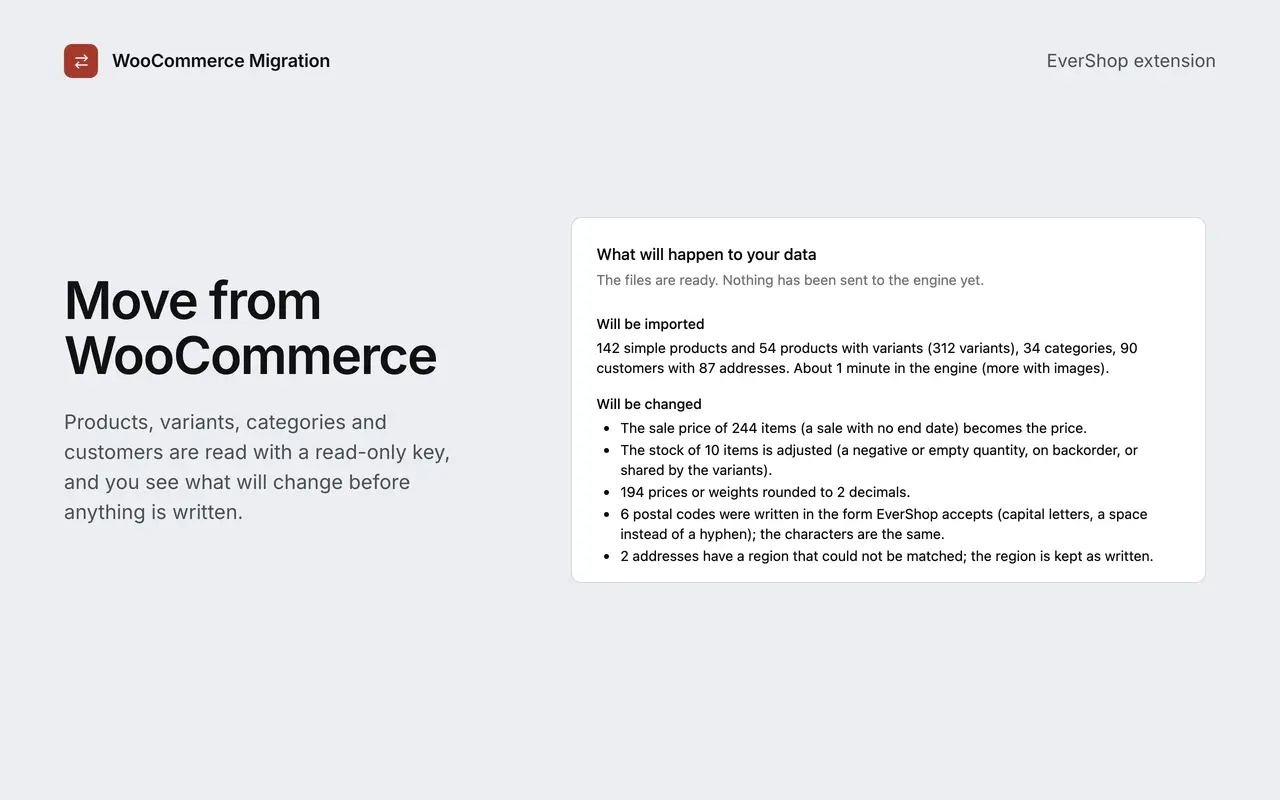
Overview
Moves your catalog and your customers from a WooCommerce store to EverShop. You use it from the EverShop admin (a page with a few clear steps), or from the command line.
It does not guess and it does not change your data in secret. Before anything is written, it shows you two screens in plain words: what will be added to your store, and what will happen to your data. You click each step yourself. It never clicks "Start" for you: the final import is started on the import page of EverShop.
Status. Tested on WooCommerce 11.2.1 test stores, up to 5,017 products, with a real EverShop store. Not yet tested on a store of 50,000 products, and not yet packaged as a release (see Install). Read Limits before you start a real migration.
What it moves, and what it does not
It moves It does not move
Categories (tree, names, descriptions, web addresses, images) Orders (a second project)
Products: simple products and products with variants (each variant becomes a product of a variant group), prices, stock, weight, tax class, images, attributes, brands, SEO title and description, barcode (GTIN), web address Coupons, reviews
Old web addresses of products: the engine is given the old address of each product, so it can redirect (301) to the new one Tax rates, shipping zones, shipping classes, payment settings, store settings (set them by hand)
Customers and their addresses (one billing and one shipping address each) Pages, posts, menus, the media library
The data of the plugins that were tried (see Plugins) Customer passwords (WooCommerce never gives them: customers use "Forgot your password?")
Grouped products as products (their children are moved), external (affiliate) products, products of plugin types (subscriptions, bundles, bookings)
The WooCommerce tags of products, temporary sale prices (a sale with an end date)
Screen 2 of the page lists, with numbers, everything that will be changed or left out for your store.
It never writes to WooCommerce. It sends only read requests (GET).
Before you start
- Back up your EverShop database. The import changes your live store. A product with the same SKU or web address, and a customer with the same email, is updated, not added twice.
- Use the same currency in both stores. Prices are copied as numbers, never converted. The page stops you if the currencies differ. Check also, by hand, that "prices include tax" is set the same way in both stores.
- Your WooCommerce store must use HTTPS. WooCommerce accepts the API key only over HTTPS.
- Create a read-only key in WooCommerce: WooCommerce → Settings → Advanced → REST API → Add key, permission Read. Keep the consumer key (
ck_…) and the consumer secret (cs_…). Delete the key when you are done. - Your product images must be on a public address. The import engine downloads them from your WooCommerce store. A local or private address is refused (you can leave images out for a test, see Options).
- The EverShop server must reach your WooCommerce store. The server reads it, not your browser.
- Pick a quiet hour. If the store changes while it is read, the page tells you to run again.
- Your EverShop must be 2.4.0 or later: it has the Import page (Quick links → Import). The migration hands its files to that page. If your admin has no Import page, update EverShop first.
- Optional, for draft and private products: a WordPress user and one of its application passwords.
Install
Needs Node 20.6 or later and EverShop 2.4.0 or later, the first release with the Import page (Quick links → Import). Until 2.4.0 is released, use a build of the dev branch of EverShop.
1. Add the package to your EverShop project. One of:
- from npm, once it is published:
npm install @evershop/woocommerce-migration - from a tarball made with
npm pack:npm install ./evershop-woocommerce-migration-0.1.0.tgz - from the source folder (for development): copy the folder to
extensions/woocommerce-migrationin your project and runnpm run buildinside it (it compiles the TypeScript files and copiesroute.jsonintodist/).
2. Switch the extension on in the configuration of your project (config/default.json, or NODE_CONFIG). For the package, resolve points into node_modules; for the source folder, it is extensions/woocommerce-migration:
{
  "system": {
    "extensions": [
      {
        "name": "woocommerce-migration",
        "resolve": "node_modules/@evershop/woocommerce-migration",
        "enabled": true,
        "priority": 10
      }
    ]
  }
}
3. Build and restart your EverShop project (npm run build, then npm run start). At start the extension adds two tables (wc_migration_run, wc_migration_file).
4. Check. Log in to the admin. Quick links → WooCommerce migration must be there. If it is not, the extension is not built or not switched on: check steps 1 to 3.
Migrate from the admin
Open Quick links → WooCommerce migration. You can close the page at any time and come back: it opens the run that is still going on, or the last one.
Step 1. Connect. Type the store address (https://…), the consumer key and the consumer secret. Three boxes you can untick: Move the product images, Move the customers and their addresses, Read the WordPress API when a plugin needs it. For draft and private products open "Draft and private products" and give the WordPress user and its application password (both, or neither). Click Read the store. The key and the secret stay in the memory of the server while the run lasts. They are not saved.
Step 2. Wait for the scan. The page reads your store (this takes seconds for a small store, a minute or more for a large one). If it finds a problem it shows "The scan found a problem". Read it. Either solve it and Start over, or Continue anyway if you accept it. Usual causes: see If something goes wrong.
Step 3. Read screen 1, "What will be added to your store". EverShop needs the attributes (with their options), an attribute group named "WooCommerce", the tax classes and the custom fields that your products use. This screen lists them. Nothing has been written to your EverShop store yet.
- If an attribute already exists in your store but lacks options (for example
colorlacks "Teal"), the screen says "N new options for M attributes you already have". The options it has stay; nothing is deleted. - An amber note names something that exists but does not fit (for example an attribute in another group). It is not changed.
- Click Set up the store. If there is nothing to add, the button says Continue. Cancel stops everything.
Step 4. Wait for the files. The page writes the files for the engine. You see the number of products done.
Step 5. Read screen 2, "What will happen to your data". Four blocks: Will be imported (the counts and a time guess), Will be changed (for example "11 SKUs are used twice; the later one gets its WooCommerce number added"), Will not be moved, and Needs your decision. "Show details" lists the plugins found. The full report (one line for every change) is the file report.csv in step 6. It lists customer emails: it is kept for 7 days, and only an admin can download it.
Step 6. Send the files to the engine, one at a time. The table "Send the files to the engine" lists the files in the order the engine needs: categories, then products, then customers, then customer addresses.
- Click Send to the engine on the first file. The engine checks it.
- When the page says "The engine's check passed. Click Start in the engine", click Open in the engine, read the check, and click Start import there. (The page never does this for you.)
- When the page says "Imported: …", the next file opens. Repeat.
The other files wait ("Waiting until … is imported") because the engine checks a product against the categories it already has, and an address against its customers.
For a large store the products come in several files (products-1.csv, products-2.csv, …), because the engine takes only so much in one file. Send them one after the other, the same way.
Step 7. Files "to correct". The engine refuses a whole file when its check finds one error. So rows that EverShop would refuse are kept apart, as they are in WooCommerce, in a file of their own:
customers-to-fix.csv: customers with no first and no last name (no name is made up).customer-addresses-to-fix.csv: addresses with no name, no region, or a postal code or phone number that is not valid (and the addresses of the customers above).
Download them, correct them in a text editor (not a spreadsheet), and import them on the import page of EverShop, after the other files: customers first, then addresses. The reason of each row is in report.csv.
Step 8. Finish. See After the migration. Click Delete now on the run when you no longer need it (it holds customer data).
How long does it take? Writing the files is fast: about 1.5 minutes for 5,000 products with 12,000 variants. The engine takes longer. A product with variants is one row per variant; count rows, not products. On a laptop we measured about 40 rows a second to create products (with images) and about 17 rows a second to update products that already exist. Screen 2 guesses with 37 rows a second, so for products your store already has, the real time is about twice the guess.
After the migration
- Open Catalog → Products, Categories, Attributes and compare with the numbers of screen 2.
- Open a few products: price, images, variants, attributes, SEO text.
- Open an old product address of your WooCommerce store: the engine was given it, so it should redirect to the new product.
- Tell your customers to use "Forgot your password?" at their first login.
- Set up what is not moved: shipping, tax rates, payment methods, pages, menus, coupons.
- Delete the WooCommerce REST key (WooCommerce → Settings → Advanced → REST API).
- Keep your WooCommerce store until you are sure. Nothing was changed there.
If something goes wrong
What you see What it means What to do
"The store address must start with https://" WooCommerce accepts the key only over HTTPS. Use the https:// address of the store.
"The store refused the key" Wrong key or secret, or the key has no Read permission. A proxy or host can also remove the Authorization header: the page then tries the key as address parameters over HTTPS, and tells you to delete the key afterwards. Check the key in WooCommerce. Create a new one if needed.
"WooCommerce uses USD, your EverShop store uses EUR" The currencies differ. Prices are copied as numbers. Change the currency of one store, or Continue anyway if you accept it.
"The images are on …, a private address" The engine refuses private image addresses. Make the store public, or untick Move the product images.
"The key is no longer in memory. Start over" The server restarted, or an hour passed without a click. Start over and type the key again.
The run is Interrupted The server stopped during the run. Start a new run.
"held by another process" Your admin is on another server instance than the one that holds the run (several instances behind a load balancer). Use the same instance (sticky sessions). Cancel and Delete now work from any instance.
The engine's check "found N errors" (FILE_HAS_ERRORS) One error is enough for the engine to refuse the whole file. Open the job in the engine and read the list. Fix the cause (often something missing in your store, or a row in a file "to correct"), then Check again there.
"The file is larger than N MB" (413) The file is over the engine's limit. The page normally cuts products into parts. If one product has so many variants that its rows alone pass the limit, the report says so. Raise system.import.maxFileSizeMb (and system.import.maxRows) in your EverShop configuration.
"Waiting until … is imported" The engine needs the earlier file first. Wait. This is by design.
"The engine stopped: too many rows failed" Many rows failed in the import. Open the job in the engine and read the failures.
Every address appears twice The engine only adds addresses. The file was imported twice. Send the addresses file only once. Remove the doubles in the admin.
"WooCommerce migration" is not in the Quick links The extension is not built or not switched on. Check Install, steps 2 to 4.
Limits and things to know
- Read only. WooCommerce is never changed.
- It updates what exists. The engine updates a product with the same SKU or web address and a customer with the same email. Addresses are added again, never updated. The page warns you about the addresses file.
- One run at a time in a whole EverShop store.
- Large stores. A store of 5,017 products (16,370 rows) was tested end to end. A store of 50,000 was not tested (a guess, not a measurement: about ten times the time). The engine takes up to 100 MB and 200,000 rows in one file (its settings
system.import.maxFileSizeMbandsystem.import.maxRows); the page cuts the products into parts that stay under both and never separates a product from its variants. - Files are kept in the database until you send them to the engine, or 7 days. The report is kept 7 days.
- Customers. One billing (the default) and one shipping address. Roles: see Customers. Staff accounts are never read.
- Plugins. Only the plugins in Plugins were tried against a real store.
- WooCommerce older than 9.2 gives no barcode, and older than 9.6 no brands.
- A local test store (a private address, for example
https://localhost:8443) needs two settings of the EverShop process before the engine can fetch its images. Neither is for a live store:system.import.allowPrivateNetworksset totrue(for exampleNODE_CONFIG='{"system":{"import":{"allowPrivateNetworks":true}}}'), andNODE_EXTRA_CA_CERTS=<the root certificate of your local certificate authority>in the real environment of the process. A live WooCommerce store has a public address and a public certificate and needs neither.
Command line
The same library runs without the admin page. No package to install.
In this section node bin/convert.mjs and node bin/apply-setup.mjs are the two tools of the package. After npm install you can also run them as npx wc-convert and npx wc-apply-setup.
1. Convert. Put the key in a file only you can read, for example ~/woo.env:
WC_KEY=ck_…
WC_SECRET=cs_…
node --env-file=$HOME/woo.env bin/convert.mjs --url https://your-woocommerce-store --out ./filesA store with a private certificate authority (a local test store) needs NODE_EXTRA_CA_CERTS=<ca file> in the real environment (not in the env file, because Node reads it at start-up). The command prints screen 2 and writes, with permission 600, into ./files: categories.csv, products.csv (or products-1.csv, products-2.csv, … for a large store), product-relations.csv, customers.csv, customer-addresses.csv, customers-to-fix.csv and customer-addresses-to-fix.csv (only when needed), report.csv and setup-plan.json.
2. Set up the store. The attributes, their options, the attribute group, the tax classes and the custom fields must exist before the engine checks the products file (the engine creates nothing it was not given).
export EVERSHOP_ADMIN_PASSWORD=…        # the password is never an option of the command
node bin/apply-setup.mjs --plan ./files/setup-plan.json --url https://your-evershop --email admin@example.com
node bin/apply-setup.mjs --plan ./files/setup-plan.json --url https://your-evershop --email admin@example.com --yes
The first command only shows what would be added (screen 1). The second adds it. The setup only adds: what exists is skipped and listed, nothing is deleted, and a second run changes nothing. One thing is added to what exists: an attribute you already have gets the options it lacks (the ones it has stay, with their ids).
3. Import. On the import page of EverShop upload the files in this order: categories.csv, products.csv (or the parts, one after the other), customers.csv, customer-addresses.csv. Read each check and click Start import. Then the files "to correct", after you corrected them (see step 7 above).
--accept-stops goes on although a preflight stop was found (for example a different currency, or images on a private address). Without it, a stop writes nothing.
Customers
- Who. The role
customerand plugin roles (for example a wholesale role) are imported.subscriberonly when it is in the optioncustomerRoles(command line). Staff roles (administrator,shop_manager,editor,author,contributor) never: nothing but the role of such an account is read, and the report holds only a count. - Passwords cannot be moved. Each customer uses "Forgot your password?" at the first login.
- Addresses. One billing (the default) and one shipping address per customer. The converter matches the state to EverShop's region list (a change of form, not a guess). It repairs no data, with one exception: a postal code is written in the form EverShop accepts (
R0J-4J9becomesR0J 4J9; the characters are the same, and each change is a line inreport.csv). An address that EverShop's address rules still refuse is written as it is tocustomer-addresses-to-fix.csv, so the other addresses can be imported. This needs the address registry of the compiled EverShop: from the command line it is found by the name@evershop/evershop, or give--evershop <folder>. - Privacy. The three customer files and
report.csvhold names, emails, addresses and telephone numbers (permission 600). They are for the engine, not for a spreadsheet: a name that starts with=,+,-or@is written as it is, and a spreadsheet reads it as a formula. Open them in a text editor.
Plugins
The converter reads the list of active plugins and tells you what it does for each one. It reads the WordPress API (wp/v2) only when an active plugin needs it. Published items need no login; for drafts and private products give a WordPress user and one of its application passwords (page: "Draft and private products"; command line: WP_USER and WP_APP_PASSWORD in the environment). The WooCommerce key is never sent to that API. Checked on a real store with the plugin installed:
Plugin What the converter does
Yoast SEO 28.8 A title or description that holds plugin variables is taken from the page as Yoast shows it (it can hold the name of the old site). The text of a product that has none of its own stays blank. Category texts are read when they are the merchant's own. The primary category is kept.
Rank Math 1.0.280 The stored text is used; a text with variables is left blank (its API gives no resolved text). No category text. The primary category is kept.
Elementor 4.3.5 Nothing to do: Elementor writes its HTML into the description.
Polylang 3.9.1 (free) The API does not say which language a product is in, so products of all languages are read and you are told.
Perfect Brands 3.6.16 WooCommerce 9.6 and later lists its brands. For an older store they are read from the WordPress API.
ACF 6.8.10 Its values are post meta: list the keys you want in metaKeys (command line).
Not tried (paid, or not installed): WPML, Polylang Pro, WPBakery, Divi, Avada, YITH Brands. For a description that still holds [vc_...], [et_pb_...] or [fusion_...] codes, the codes are removed and the text between them is kept.
Options
For the command line: --config config.json (no secret in it). The admin page sets the three boxes of step 1; it reads the currency, the weight unit and the engine limits from your EverShop store.
Option Default Meaning
saleMode auto Sale prices: auto (a started sale with no end date becomes the price, a sale with an end date is dropped), drop, use.
defaultCategorySlug uncategorized The WooCommerce default category is not created.
attributeGroup WooCommerce The one group that holds all migrated attributes.
evershopWeightUnit kg Weights are converted to this unit (kg, g, lbs, oz).
evershopCurrency none If set and different from the WooCommerce currency, the run stops.
metaKeys [] Meta keys to carry as custom fields: [{ "key": "_my_key", "type": "short_text", "entities": ["product", "customer"] }] (entities may hold product, category, customer).
writeSourceId true Write the WooCommerce id as metafield:wc.source_id.
customerRoles [] Roles imported besides customer and plugin roles: only subscriber is held back unless listed.
includeCustomers true false reads no customer and writes no customer file.
evershopPath none Folder of the compiled EverShop (also --evershop); its address registry matches the regions of addresses.
includeImages true false leaves the image columns empty (for a store whose images the engine cannot reach).
useWordPress true Read the WordPress API (wp/v2) when an active plugin needs it. false: the adapters fall back.
pluginTypesAsSimple [] Plugin product types to import as plain products.
requestsPerSecond 0 Limit on the requests to WooCommerce (0 = none).
engineMaxFileMb, engineMaxRows 100, 200000 The engine's limits for one file (system.import.maxFileSizeMb, system.import.maxRows of your EverShop store). products.csv is cut into parts that stay under both (the size is kept 5% below). The admin page reads the real values from its store; set them here if your store changed them.
For developers
Where to read more. The source repository (extensions/woocommerce-migration in evershopcommerce/extensions) has SPECIFICATION.md (section 4 is the data mapping table, section 10 lists the decisions W-1 to W-29) and PHASE0-FINDINGS.md (what was checked on a real store, run by run). They are not in the npm package.
How it works.
WooCommerce  ──►  reader  ──►  mappers  ──►  EverShop CSV files  ──►  EverShop import engine
 (REST API)                    (pure code)   (categories, products…)   (check, then import)
                                  │
                                  └──►  setup-plan.json  ──►  setup (attributes, tax classes, … exist)
The converter reads WooCommerce (GET only) and writes files; the setup adds what the engine needs; the import engine checks and imports the files, and the merchant clicks Start there. The mappers are pure code (no network, no clock).
Status of the specification: draft 19 (2026-10-31). Built: phases 1 (categories and products), 2 (customers and addresses), 3 (admin page), the plugin adapters listed above, the setup of existing attributes' options (W-28) and the split of large products files (W-29). Not done: the paid plugins (WPML, WPBakery, Divi, Avada, YITH Brands: the specification allows no adapter without real answers of a store that has the plugin), a run of 50,000 products (phase 4), orders (a second specification), the scan that lists the custom-field keys of a store (M-PLG-08), the check of an existing EverShop store (M-PRE-08), packaging as a release.
The admin page. The page runs steps 1 to 5 inside the EverShop server process. The state of a run is in PostgreSQL (wc_migration_run, wc_migration_file); the key and the secret are only in the memory of the process that holds the run (one hour without a click at most), so a restart ends the run as "interrupted".
- Several instances behind a load balancer: the instance that started the run holds the key. "Continue" and "Set up the store" on another instance are refused ("held by another process"); "Cancel" and "Delete now" are written to the table, and the holder sees them within 15 seconds, stops and forgets the key. If the holder dies, the run shows as "interrupted" after about two minutes.
- The setup runs through core's own code (
catalog/services,lib/metafield), behind the same port as the command-line script (which uses the admin REST API). - Development mode (
evershop dev): core compilessrc/todist/with swc, which renames every.mjsfile to.js. So the library files insrc/are.js(the package has"type": "module"); only the command-line scripts (bin/), the tests and the tools stay.mjs. Do not add a.mjsfile undersrc/(a test checks this). - Production mode (
evershop buildthenevershop start) and development mode were both tried.
Tests.
node --test "test/**/*.test.mjs" # Node 21 or later for the globNo network and no database. The fixtures in test/fixtures/sample-store/ are real answers of a WooCommerce 11.2.1 store (made by tools/capture-fixtures.mjs). Some tests run the generated files through the validators of the import engine in the compiled EverShop; they are skipped when it has no import engine. Point them at a core checkout with EVERSHOP_PKG=<core>/packages/evershop (compile core first). Without it they use the installed @evershop/evershop.
Highlights
Catalog and customers
Products, variations, categories, images, customers and their addresses move from WooCommerce to EverShop.
See it before it happens
Two plain screens show what will be added and what will happen to your data before anything is written.
Read-only on WooCommerce
It only reads from WooCommerce; your old store is never changed.
Old links keep working
Each product's old web address is kept so it can redirect to the new page.
Requirements
- EverShop 2.x
- API key
Be the first to review this product
Write a review
Please log in to share your review of this product.
Changelog
- First version. Tested on WooCommerce 11.2.1 test stores up to 5,017 products, with a real EverShop store.
- ### Added
- An admin page, Quick links → WooCommerce migration. It reads a WooCommerce store with a read-only key, shows what will be
- added to your store (screen 1), sets the store up, writes the files, shows what will happen to your data (screen 2), and
- sends the files to the import engine one at a time. It never clicks Start in the engine.
- A command line: `wc-convert` (read WooCommerce, write the files and the setup plan) and `wc-apply-setup` (add the attributes,
- their options, the attribute group, the tax classes and the custom fields the files need).
- Categories, products (simple, and with variants), customers and their addresses. Plugin adapters for Yoast SEO, Rank Math,
- Elementor, Polylang (free), Perfect Brands for WooCommerce and ACF.
- The setup adds the options an existing attribute lacks (the options it has stay).
- A large store's products come in several files (`products-1.csv`, ...) that stay under the engine's limits for one file.
- ### Needs
- Node 20.6 or later.
- EverShop 2.4.0 or later, the first release with the Import page (Quick links → Import). 2.3.0 does not have it. Until 2.4.0 is
- released, use a build of EverShop's `dev` branch.
- ### Not done
- The paid plugins (WPML, Polylang Pro, WPBakery, Divi, Avada, YITH Brands), orders, a store of 50,000 products.
WooCommerce Migration
v0.1.0Move your products, variations, images and customers from WooCommerce to EverShop, with a clear preview of every change before you import.
Self-hosted
Download the extension for your own EverShop installation.
Free
Download from your orders — always the latest version.
- Version
- 0.1.0
- Last updated
- 2026-11-13
- Category
- Extensions
- Type
- Extension
- Compatibility
- EverShop 2.x
- Package
- @evershop/woocommerce-migration